Choosing a mechanical keyboard for Mac is less about raw specs than about one unglamorous detail: whether the keys either side of the spacebar say Command and Option, or Alt and Windows. Almost any USB or Bluetooth keyboard will work with macOS, but a board built for Windows leaves you either retraining your thumbs or digging into System Settings to swap modifiers — and then living with legends that lie. Every keyboard below ships with a macOS keycap set in the box, verified against the manufacturer's own listing, so the board matches the machine on day one.
What Makes a Mechanical Keyboard "for Mac" Different?
Four things separate a Mac-ready board from a Windows board you've talked yourself into:
- Correct modifier legends. macOS puts Control, Option, and Command to the left of the spacebar in that order; Windows puts Ctrl, Windows, and Alt. The physical keys are in the same places, but the labels are wrong and the order of the middle two is swapped. A Mac-labelled keycap set fixes both at once.
- An OS toggle or a remap that sticks. Keychron's boards include both keycap sets and let you switch modes, so the same keyboard can serve a Mac at home and a work PC without relabeling anything.
- A function row that behaves. On macOS the F-keys double as brightness, Mission Control, and media controls. Boards designed with macOS in mind label and map that row sensibly rather than leaving it as bare F1–F12.
- Configuration software that runs on a Mac. This is where a lot of "Mac compatible" keyboards quietly fail — the remapping tool is a Windows-only .exe. All four boards here configure through the browser-based Keychron Launcher, so there's no native app to install and nothing that only runs on the other platform.
Everything else — switch feel, case material, sound — matters just as much as it does on any other keyboard, but it isn't Mac-specific. Get the layout and the legends right first.
Pick the Layout First
The single decision that drives everything else is how much keyboard you want on the desk:
| Layout | Size | Best for |
|---|---|---|
| Low-profile 75% | F-row + arrows in a slim case | Travelling with a MacBook, minimal desks |
| 75% | Compact with F-row + arrows | The default: most keys, least width |
| TKL (80%) | Everything but the numpad | Mouse room for design and gaming |
| Full-size (100%) | Numpad included | Spreadsheets, finance, data entry |
If you're undecided, 75% is the safe answer — it keeps the function row that macOS leans on for brightness and volume, keeps a real arrow cluster, and still frees up meaningful desk width compared to a full-size board. Our TKL keyboards and low-profile mechanical keyboards guides go deeper on the larger and slimmer options.
The Best Mechanical Keyboards for Mac in 2026
Four boards, chosen to cover each layout above rather than four versions of the same keyboard. All four include keycaps for both Windows and macOS.
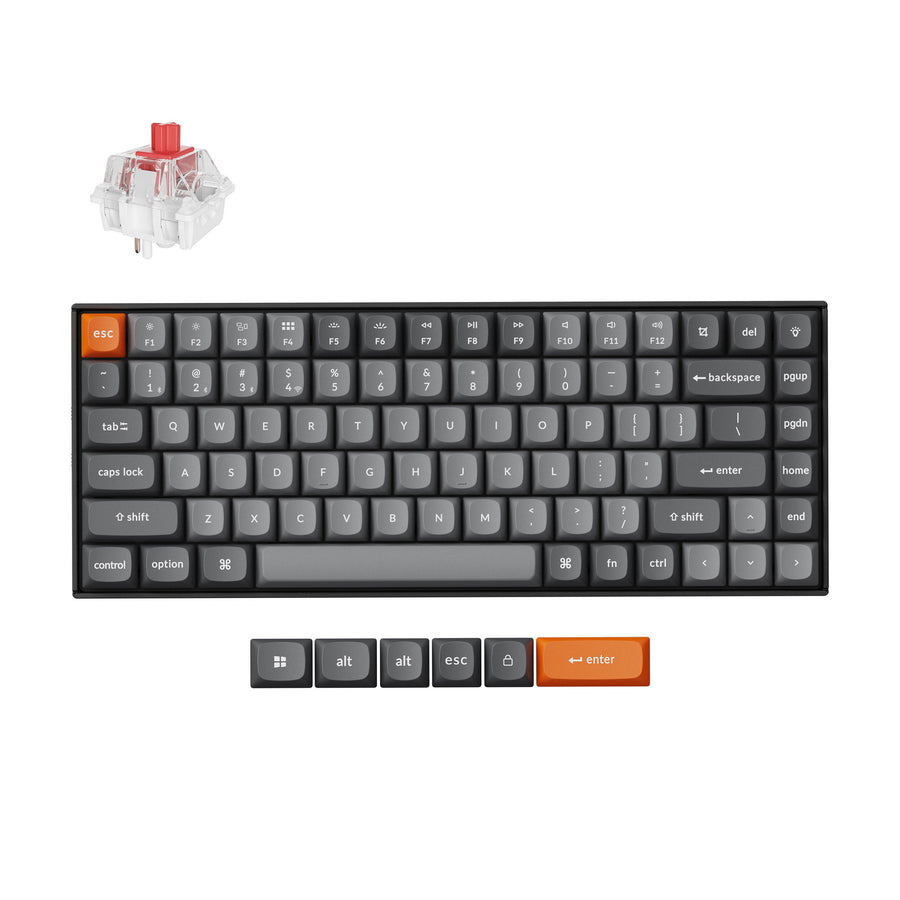
Keychron K2 Max QMK Wireless Mechanical Keyboard
The default recommendation, and the one most Mac users should buy without overthinking it. It's a 75% board, so you keep the function row macOS uses for brightness and media plus a proper arrow cluster, while losing the numpad and the wasted width that comes with it. Connectivity is tri-mode — 2.4 GHz, Bluetooth, or USB-C — which means it can sit wired at a desk and still pair to an iPad without re-plugging anything. Remapping runs through the Keychron Launcher web app, and the hot-swappable versions let you change switches later; there's an aluminum-frame option if you want more weight and a denser sound.
Pros: Best all-round layout for macOS; tri-mode wireless; Mac and Windows keycaps included; hot-swap and aluminum versions available Cons: Hot-swap is limited to specific versions — check the variant before ordering
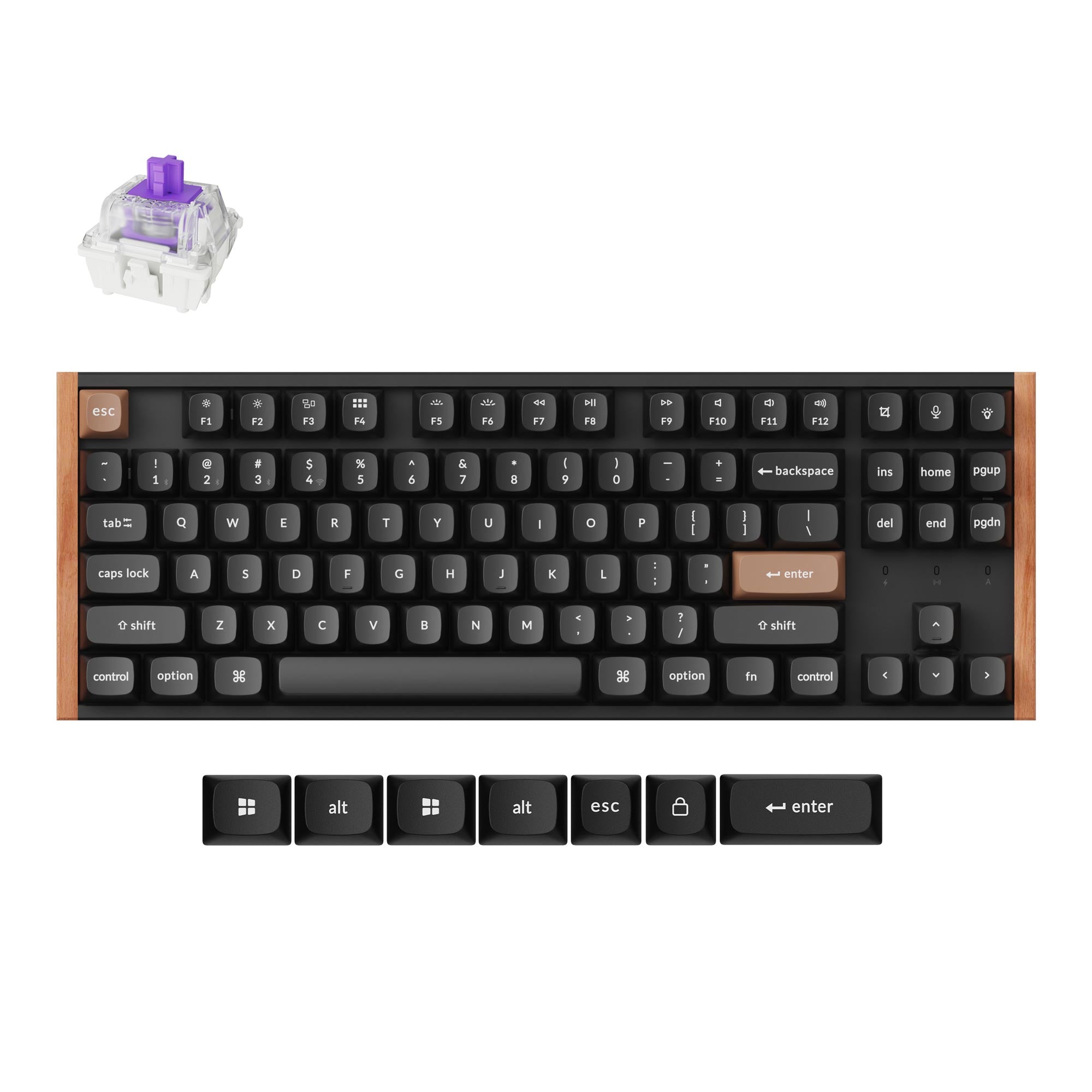
Keychron K8 HE Wireless Magnetic Switch Custom Keyboard
The tenkeyless pick, and the better buy if you use a mouse heavily — dropping the numpad pulls the mouse several inches closer to your shoulder, which is the ergonomic argument for TKL in a nutshell. You keep the full function row, the standard navigation block and inverted-T arrows, so nothing gets doubled up on a layer. Connectivity matches the K2 Max (2.4 GHz, Bluetooth for up to three devices, or USB-C), remapping runs through Keychron Launcher, and Windows and macOS keycaps come in the box. The difference is the switches. These are Gateron Double-Rail magnetic (Hall-effect) switches with Rapid Trigger and actuation you can set anywhere from 0.2 to 3.8 mm, in an aluminum case. When we checked, only the Special Edition with Gateron Nebula switches, in black or white, was in stock.
Pros: Room for a mouse without giving up the F-row or arrows; tri-mode wireless; adjustable actuation Cons: Sockets only take Gateron Double-Rail magnetic switches; no numpad; heavy for its size at about 1.2 kg
Keychron K10 Max QMK Wireless Mechanical Keyboard
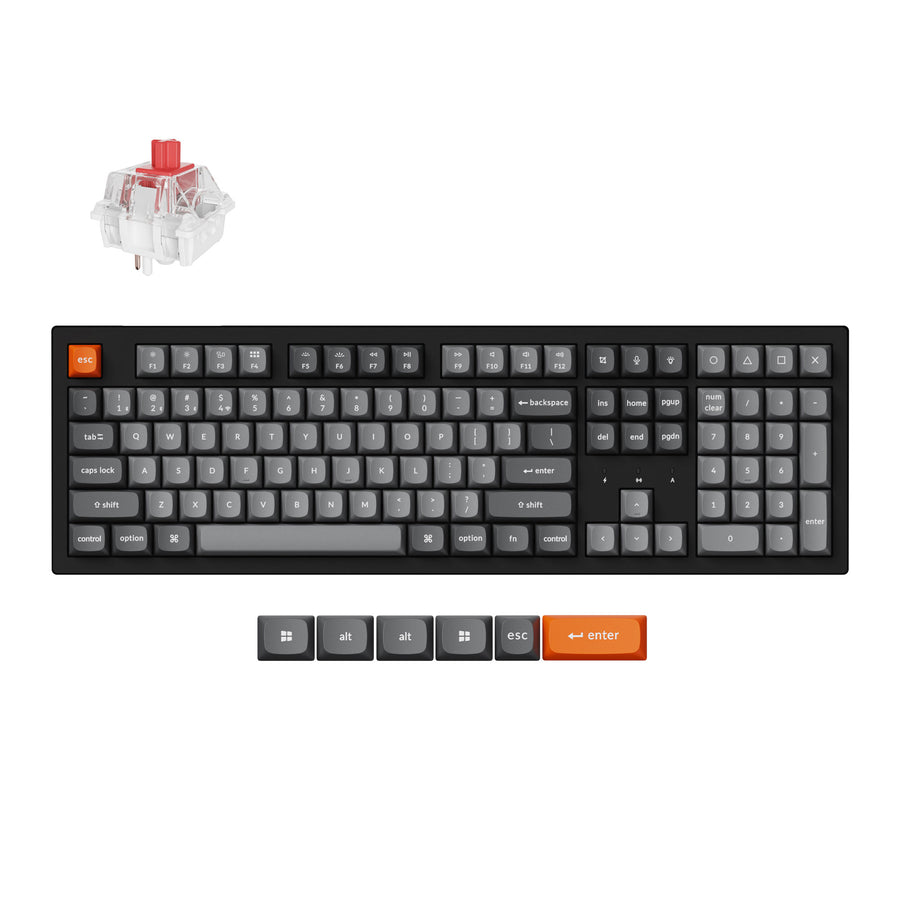
The full-size pick, for Mac users who live in spreadsheets and don't want a separate number pad cluttering the desk. It's a 100% layout with a dedicated numpad, and it keeps the wireless flexibility of the rest of the range: 2.4 GHz, Bluetooth, and wired all work, so it suits a Mac mini or iMac setup where you'd rather not run another cable. The hot-swappable versions accept any normal-profile MX switch, which is a wider compatibility window than boards that only take the manufacturer's own switches.
Pros: Full numpad; tri-mode wireless on a 100% board; hot-swap accepts standard MX switches Cons: Takes the most desk width of anything here; pushes the mouse furthest right
Keychron K3 Max QMK/VIA Wireless Custom Mechanical Keyboard
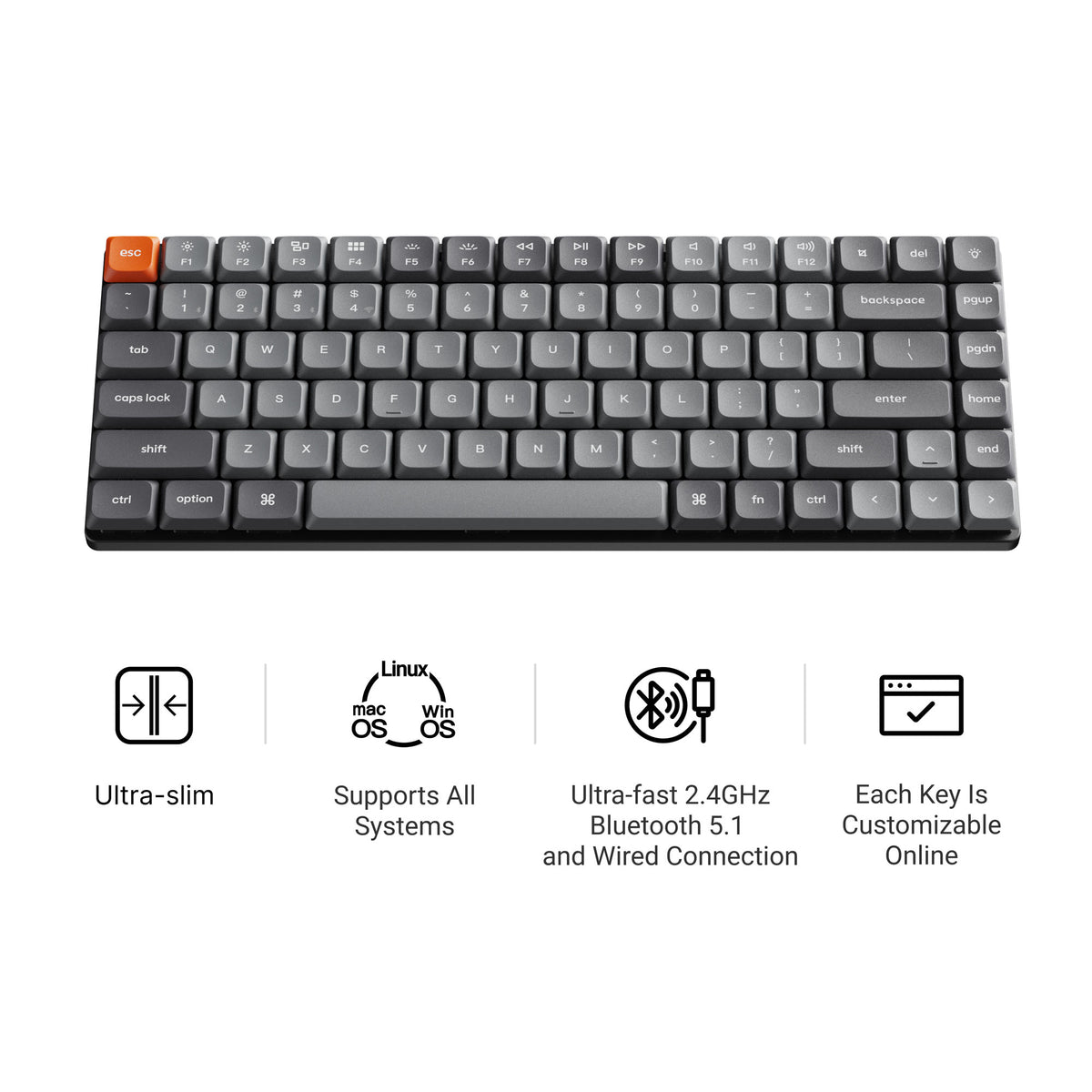
The one to buy if the keyboard travels with the MacBook. It's an ultra-slim 75% board weighing about 525 g, with low-profile LSA (low-profile spherical-angled) double-shot PBT keycaps, again with both Windows and macOS legends. Unlike most travel boards it keeps the function row and a real arrow cluster, so brightness and media stay one press away. Tri-mode wireless, Gateron low-profile mechanical switches, Keychron Launcher remapping, and on the RGB hot-swappable version you can swap in other low-profile MX-style switches later. Stock is thin. When we checked, only the black RGB hot-swappable version with low-profile Gateron Red or Brown switches was buyable. Our guide to low-profile mechanical keyboards covers the other slim options.
Pros: Light enough for a laptop bag; low-profile caps sit close to a MacBook's own key height; keeps the F-row and arrows Cons: Most versions were out of stock when we checked; low-profile switches and caps narrow your upgrade choices
Setting Up a Mac-Layout Keyboard in macOS
With a board that ships Mac keycaps, setup is mostly swapping the two or three affected keycaps to the macOS set and flipping the keyboard into Mac mode. After that:
- Pair or plug in. For Bluetooth, hold the pairing key until the indicator flashes, then pick the keyboard under System Settings → Bluetooth. The 2.4 GHz dongle and USB-C both work with no setup at all.
- Check your modifiers. Open System Settings → Keyboard → Keyboard Shortcuts → Modifier Keys, choose the keyboard from the dropdown, and confirm Command and Option are where the legends say they are. On a Windows-only board this is the screen where you'd manually swap them — the point of a Mac keycap set is that you shouldn't have to.
- Remap anything else in the browser. Keychron Launcher is a web app, so there's no Mac client to download. It's also where you'd assign the function row, build layers, or record macros.
None of this is difficult, but it's the difference between a board that feels native and one that fights you every time you reach for Command-C.
Which One Should You Buy?
For most people the K2 Max is the right mechanical keyboard for Mac: 75% keeps the function row macOS actually uses, tri-mode wireless covers every machine you own, and the hot-swap versions leave the door open to change switches later. Choose the K8 HE instead if you mouse a lot, the K10 Max if you need a numpad, and the K3 Max if the board has to fit in a bag.
Whichever you pick, the thing that makes it a Mac keyboard is boring and non-negotiable — the right legends, the right modifier order, and configuration software that runs on your machine. Get that right and the rest is just preference. If you want to change how the board feels after you've chosen a layout, hot-swappable keyboards let you do exactly that without soldering — every board here offers a hot-swappable version, though on several of them it's a specific variant rather than the default, and the K8 HE only takes Gateron's magnetic switches, so check before you order.